
Integrations
Connect Gmail and Google Workspace
Your Google mailbox and your customer records stop being two separate jobs. Connect once, and the email you already send becomes the history on the record.
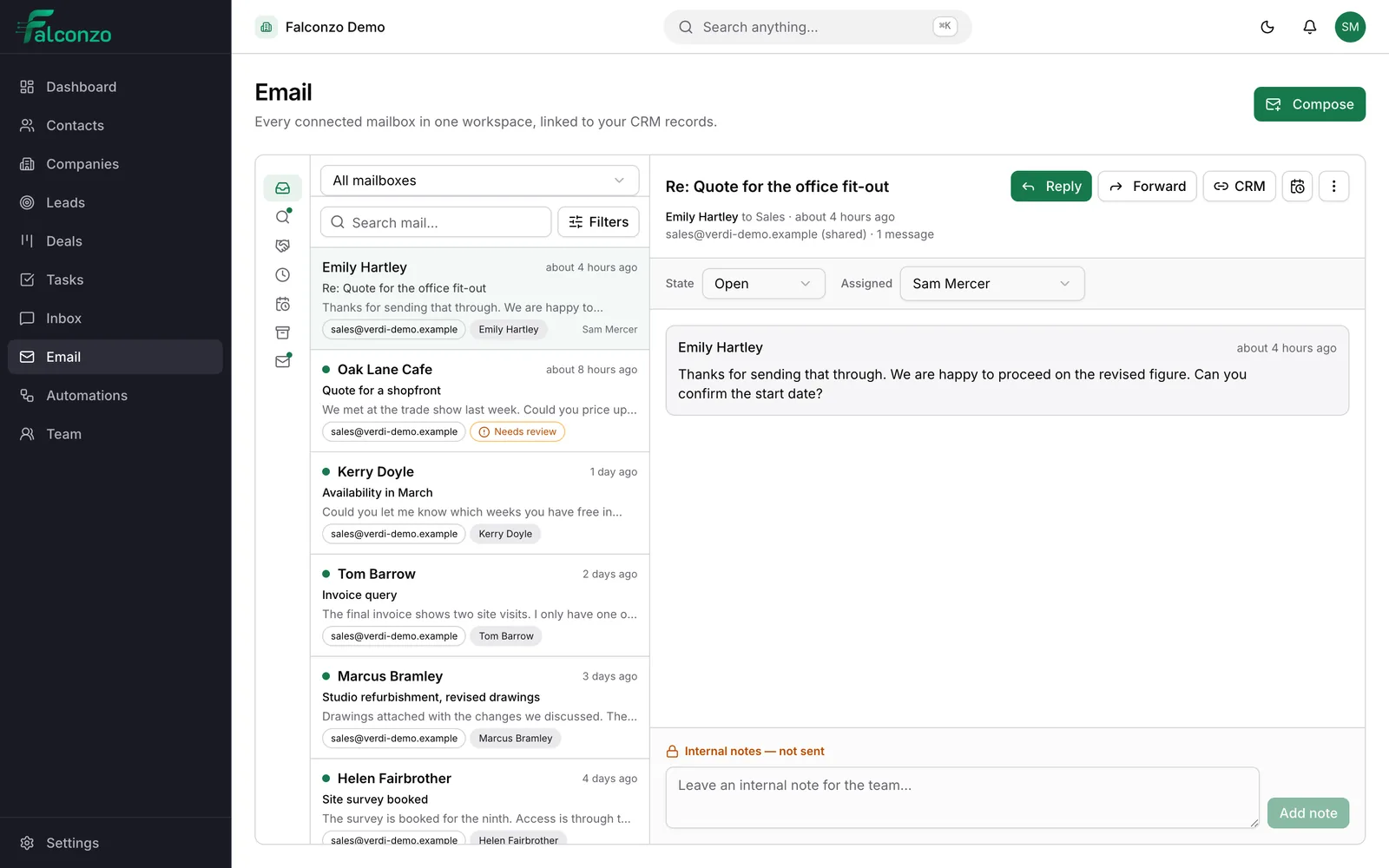
Why connect your Google mailbox
Gmail already holds the story of every customer relationship. It just does not know who those customers are.
If your business runs on Gmail or Google Workspace, the useful detail about a customer is already written down. The problem is that it is written down in a mailbox, filed by date, and nobody else on the team can see the part that matters to them.
Connecting Google to Falconzo turns that mail into context. Open a contact and you see the conversation. Open a deal and you see what was actually promised. Nobody has to write a summary, because the messages are the summary.
This works for a personal work address and for team addresses alike. Each person connects their own mailbox, and an address that belongs to the whole company can become a shared one.
What connecting Google gives you
Everything below comes from the one connection.
Your Gmail, where the records are
Work email from a Gmail or Google Workspace mailbox syncs into Falconzo automatically and appears beside the contacts, companies and deals it relates to.
Threads matched to customers
Falconzo matches a conversation to a CRM record by email address. One exact match is linked for you; anything ambiguous is offered as a suggestion to confirm or dismiss.
Reply and forward from Falconzo
Send from your Google address without switching tabs. Replies stay threaded in the recipient's mail client, so the conversation looks normal to them.
Shared Google addresses
A Workspace address such as sales@ or support@ can be turned into a shared mailbox, with team status, assignment to a teammate and internal notes that are never sent out.
Attachments on demand
Files attached to a message are listed and can be downloaded. They stay with Google and are fetched when someone asks for them.
Your own read state
Read and archived are per person. Clearing your view in Falconzo is your business, and on a shared mailbox it does not hide the conversation from the team.
How to connect
A few minutes in settings, and reversible at any time.
Open integrations in settings
Go to the integrations settings in Falconzo and choose Google as your mail provider.
Approve access on Google's screen
Google asks you to sign in and shows exactly what Falconzo is requesting. You approve it there, on Google's own page, and are returned to Falconzo.
Choose your history window
Pick how far back the first sync should reach: 30, 90 or 180 days. Ninety days is the default and gives most teams enough context to start.
Work through the review list
Certain matches are already linked. The rest sit in a needs review list where you confirm the right ones and dismiss the rest.
Access and control
You approve it on Google's page, and you can undo it
Falconzo never asks for your Google password. Connecting sends you to Google's own authorisation screen, where you sign in and approve access. The credentials that come back are encrypted before they are stored and are never sent to your browser.
You can disconnect from settings whenever you want, which removes those stored credentials and stops the sync. The CRM records you have built stay exactly as they are.
- A personal mailbox is visible only to the person who connected it
- Shared mailboxes are governed by your roles and permissions
- Remote images in a message stay blocked until you choose to load them
- Falconzo will not send to a contact or lead who is marked as opted out
What you end up with
A record that keeps itself current. New people email in, the conversation lands against the right company, and a colleague picking up the account tomorrow can read what happened without asking anyone.
See how the mail itself is organised on the email workspace page, how team addresses work in the shared inbox, or go back to all integrations to compare providers. Common questions are answered in the FAQ.
See it with your own Gmail set-up
Book a walkthrough and we will show you how your Google mailbox, your team addresses and your customer records would fit together.